Most business websites stop changing the week they go live. Not because the owner has nothing to say, but because changing anything means finding the person who built it, explaining what you want, waiting, and then finding that the new bit does not look like the rest of the site. So the opening hours stay wrong and the new service never gets a mention.
Velora puts the site back in your hands without turning you into a web designer.
What you are looking at
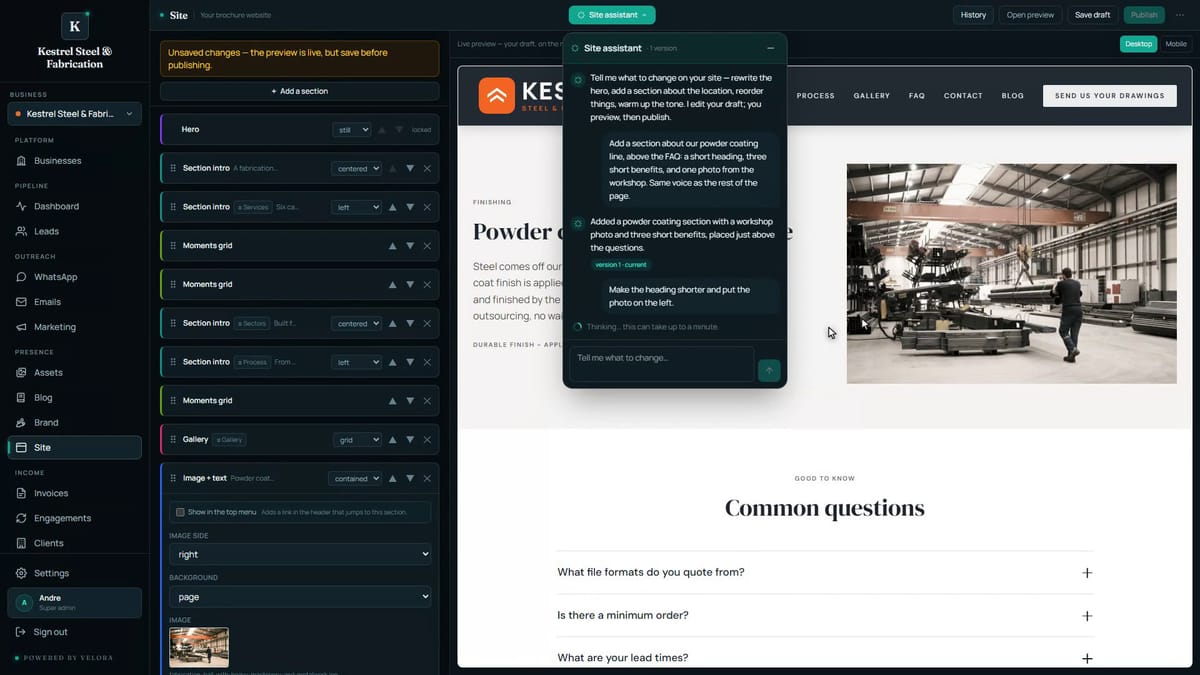
Your site opens as two halves. Down the left, the sections of your page in the order a visitor meets them. On the right, a live preview of your draft, drawn on the real site in your real brand. Not a mock-up in a builder. The same code, the same fonts and the same photographs your visitors get, so what you approve is what goes up.
One click switches that preview to a phone, and another brings the desktop back. Most of your visitors are on a phone, so it is worth the click.
Describe the change
Open the Site assistant and brief it the way you would brief a designer. What the section is about, where it should go, what it should show. One sentence is usually enough.
It reads the whole page before it writes anything, so the new section arrives in the same voice as the rest rather than reading like an insert. The photograph comes from your own library, chosen by what the picture actually shows.
While it works, notice what you are not doing. No template to choose. No columns to drag into place. No image to crop to the right shape. You said what you wanted in a sentence, and the page is being rebuilt around it.
The things it is not allowed to do
This is the part that makes it safe to hand to someone who has never built a page.
It can only place photographs that exist in your library, and it can only link to sections that exist on your site. It cannot invent a picture or a page. If the section needs a button, the button points at something real, never at a dead link.
It also keeps the rules of the layout. The section lands where you asked for it, the menu still makes sense afterwards, and the rest of the page is left exactly as it was. The assistant changes what you asked for and nothing else.
Talk to it until it is right
If the heading is too long or the photograph would sit better on the left, you do not go hunting for a setting. You say so, in plain words, the same way you would tell a colleague.
Every turn keeps a version. Under History you can go back to any earlier draft with one click, which is what makes trying an idea free rather than risky. It also remembers what you asked for earlier in the same conversation, so a standing instruction like “keep the headings short” stays in force for the next change.
And you can always take over. Open the section, change the words yourself, and the preview updates as you type.
Nothing is public until you say so
There is a yellow bar across the editor for a reason. The assistant only ever edits your draft. Nothing reaches the public site until you press Publish.
That changes what the site is for. You can try a section, look at it on the real page on a real phone, decide it does not work, and throw it away, and no visitor ever saw it. The site stops being a thing you are frightened to touch.
When you are happy, save the draft and publish. Publishing replaces what the public sees. The draft stays yours to keep working on.
The video at the top of this post is a section going on to a live site, start to finish, with nothing cut out.